

Microsoft has released KB5124010, the September 2026 optional preview update for Windows 11 versions 25H2 and 24H2, and it's one of the busiest non-security releases of the year. It adds an Open apps maximized setting, lets you remap the Copilot key, brings Emoji 17.0, new touchpad gestures and a Tips widget, and fixes the File History backup bug caused by September's Patch Tuesday. It's also the last preview update Windows 11 24H2 will ever get. Here's everything that's new, what's broken, and whether you should install it.
Das Wichtigste
Released: September 22, 2026, as an optional non-security preview.
Builds: 26200.9550 (25H2) and 26100.9550 (24H2).
Headline features: Open apps maximized, Copilot key remapping, Emoji 17.0, touchpad edge gestures, Tips widget.
Main fix: File History failing to back up with a false "Reconnect your drive" message.
Removed: PC-to-PC Migration in Windows Backup.
Known issues: domain trust failures on some Credential Guard devices; USB Audio Class 1.0 devices showing Code 10.
Big picture: final preview for 24H2. Home and Pro editions stop getting updates on October 13, 2026.
What is KB5124010?
KB5124010 is a cumulative, non-security preview update. Windows doesn't install it automatically: you have to choose it from Optional updates. Everything in it is scheduled to reach all Windows 11 24H2 and 25H2 PCs with the mandatory October 13, 2026 Patch Tuesday update, so installing it now simply gets you the changes about three weeks early.
Microsoft ships the release in two phases. Bug fixes in the normal rollout apply as soon as you install. New features in the gradual rollout are switched on over time, so some of the settings below may not appear on your PC straight away, and availability can differ by region and hardware. The package also bundles servicing stack update KB5124009 and moves the on-device AI components (Image Search, Content Extraction, Semantic Analysis and the Settings model) to version 1.2608.951.0. You can read the full changelog in Microsoft's official KB5124010 release notes.
15 new features and improvements in KB5124010
These are the changes most people will actually notice, grouped from the most useful to the most niche.
1. Open apps maximized
A new accessibility option makes every app window open maximized by default. It's designed for screen reader and Magnifier users and for tablet-style use, but anyone who works full-screen all day will appreciate not resizing windows by hand. Turn it on in Settings > Accessibility > Visual effects > Open apps maximized.
2. Remap the Copilot key to Right Ctrl or Menu
Newer laptops replaced the Right Ctrl key with a dedicated Copilot key, which frustrated people who relied on it for shortcuts. You can now make that key act as Right Ctrl or the Context Menu key from Settings > Bluetooth & devices > Keyboard. One caveat: some Right Ctrl combinations, such as RCtrl + Win and RCtrl + Shift, may not work normally after remapping, so use the left Ctrl key for those.
3. Emoji 17.0 support
Windows 11 now supports the Emoji 17.0 set, including new characters such as distorted face, fight cloud and hairy creature. Press Win + . (period) to open the emoji panel. Microsoft also redrew several existing emoji, including saluting face, face with peeking eye, goose, lotus and kissing cat, so they look more consistent with other platforms.
4. Previews for files downloaded from the web
File Explorer's preview pane has been blocking downloaded files for security reasons. Now, PDFs and other non-HTML downloads preview automatically, while downloaded HTML files show a warning with a new Preview anyway button, so you decide whether to open them.
5. File Explorer Home remembers your layout
If you collapse or expand sections on File Explorer's Home page, such as Recent or Favorites, Windows now keeps them that way the next time you open it.
6. A cleaner Details pane
The Details pane has been reorganized so file properties are easier to scan, and thumbnails for cloud files (OneDrive, for example) load more reliably. Microsoft also fixed a small but annoying bug where clicking near the right edge of the address bar could wipe out its contents.
7. Single-finger edge scrolling on touchpads
Precision touchpads gain a classic laptop feature: scroll vertically with one finger by sliding along the left or right edge of the pad. Find it in Settings > Bluetooth & devices > Touchpad.
8. Automatic touchpad scrolling
A second new gesture keeps a page scrolling automatically when your fingers reach the edge of the touchpad, so you don't have to lift and reposition them on long documents. It builds on the scroll-speed and scroll-acceleration controls added in July's KB5101684 update.
9. New Tips widget
The new Tips widget shows short guides to Windows features. Add it from the Widgets board via Add widgets > Tips, or put it on your lock screen from Settings > Personalization > Lock screen.
10. A refreshed Magnifier toolbar
Magnifier's toolbar gets new icons and tidier spacing that match the rest of Windows 11. Nothing changes in how it works: views, zoom controls, shortcuts and Read Aloud behave exactly as before.
11. Camera roll backup to OneDrive
A new Camera roll backup option in Settings (on the Home or Accounts page) helps you back up your phone's photos to OneDrive. You start on the PC and finish setup on your phone by scanning a QR code. Availability depends on your device and market.
12. Better wallpaper and slideshow handling
Slideshow wallpapers now work with multiple desktops instead of switching you back to a single picture. Windows also accepts DIB image files as backgrounds, shows sharper previews in Settings > Personalization > Background, displays previews properly on portrait monitors, and handles quick successive wallpaper changes more reliably.
13. More reliable Bluetooth audio
Bluetooth gets a long list of fixes. During calls, changing volume on your headset now shows the on-screen volume flyout. Microphones on some Bluetooth Classic headsets work better, LE Audio devices are more stable, and shared audio is more dependable. The update also fixes a crash (error 0x139) while streaming Bluetooth audio, and a bug where the Bluetooth toggle showed "on" even though the radio was off.
14. Small but useful Settings tweaks
Settings > Apps > Installed apps now shows the version number of Microsoft Store (packaged) apps at a glance. Time pickers, like those for active hours and Night light, now follow your 12-hour or 24-hour preference. The option to let multiple apps use the camera at once now sticks, and the Printers & scanners page is more stable.
15. New writing systems in the Ebrima font
The Ebrima font adds the Garay and Beria Erfe scripts, making it the first Microsoft font to support both. Its Adlam characters have also been refined to match the latest Unicode standard.
Changes for IT admins: WinRE and kiosk mode
Businesses get a new WinRE remote management plug-in that lets MDM providers extend their control of Windows Recovery. In kiosk setups, Win + Tab is now disabled in restricted UX kiosks, while Win + A and Win + C are disabled in single-app kiosk mode. Sysmon also gets three fixes, including one for false Event ID 25 tampering alerts on the Session Manager process (smss.exe).
Note that a feature letting WinRE reuse saved Wi-Fi networks during recovery was originally listed for this update. Microsoft has since pulled it, and it will arrive in a later release.
File History is fixed, plus other bug fixes
The most important fix is for File History. After the September 8 security update (KB5124008), some PCs stopped backing up or restoring files to external drives and network locations, and showed a "Reconnect your drive" message even though the backup drive was connected and working. KB5124010 resolves this, and because it's part of the normal rollout, the fix applies as soon as you install.
Other fixes include a bug that could stop the built-in camera from working in the Camera app and other apps, and a problem where plugged-in laptops wrongly detected a switch to battery power, which could affect display and performance.
PC-to-PC Migration has been removed
The update also retires PC-to-PC Migration, a recently introduced Windows Backup feature that copied files and settings directly from an old PC while setting up a new one. Microsoft now points users to Windows Backup for moving to a new PC instead.
Known issues to check before installing
1. Domain-joined PCs may lose trust with the domain. Some devices using Credential Guard protected machine accounts can lose their secure channel with on-premises Active Directory, and users see a "trust relationship" sign-in error (cached sign-ins may still work). It happens because recent updates start honoring existing Machine Identity Isolation settings, which are only supported with Windows Server 2025 domain controllers. The workaround is to disable Machine Identity Isolation the same way it was enabled (Intune, Group Policy, or by setting the MachineIdentityIsolation registry value from 2 to 0), restart, and then repair the secure channel with Test-ComputerSecureChannel -Repair in PowerShell. Microsoft plans a fix in a future update.
2. Some USB audio devices stop working. Certain USB Audio Class 1.0 devices may show "This device cannot start (Code 10)" in Device Manager, produce no sound, or have stuck volume controls. Microsoft is still working on a fix.
Worth knowing: both issues started with the September 8 security update, so skipping this preview won't avoid them if that update is already installed.
The final preview for Windows 11 24H2: what it means for you
Microsoft confirmed that KB5124010 is the last non-security preview update for Windows 11 24H2. More importantly, 24H2 Home and Pro editions reach end of updates on October 13, 2026. After that date they stop receiving security patches, bug fixes and technical support. Enterprise and Education editions stay supported until October 12, 2027, according to Microsoft's Windows 11 Home and Pro lifecycle page.
If you're on 24H2 Home or Pro, plan your upgrade to 25H2 now. It shares the same codebase, so it installs quickly as a small enablement package through Windows Update. Staying on a supported version matters: recent issues like the critical Windows 11 Notepad vulnerability are only patched on versions that still receive updates.
One more thing on Microsoft's radar: Secure Boot certificates on most Windows PCs began expiring in June 2026. Devices without the new certificates keep working and updating normally, and Microsoft continues delivering the replacements through Windows Update.
How to install KB5124010
Through Windows Update (recommended): open Settings > Windows Update > Advanced options > Optional updates, select 2026-09 Preview Update (KB5124010), then click Download & install and restart when prompted.
Manually: download the standalone .msu package for x64 or ARM64 from the Microsoft Update Catalog and double-click it to install. This is handy if Windows Update is stuck or you're updating several PCs.
For IT teams: if you apply dynamic updates to Windows images, make sure the boot.stl file is included on the installation media. Without it, devices may fail to boot from that media with error 0xc0430001.
KB5124010 FAQ
Is KB5124010 a security update?
No. It's an optional non-security preview. Its changes will be included in the mandatory October 13, 2026 security update.
What build does KB5124010 install?
Build 26200.9550 on Windows 11 25H2 and build 26100.9550 on 24H2.
Why don't I see Open apps maximized or the Copilot key option?
New features roll out gradually. Install the update, keep Windows Update turned on, and the settings will appear over the coming weeks.
Does KB5124010 fix File History?
Yes. It fixes the September bug where File History couldn't back up or restore and showed a false "Reconnect your drive" message.
Is this the last update for Windows 11 24H2?
It's the last preview update. Home and Pro get their final security update in October 2026; Enterprise and Education continue until October 2027.
Our take: should you install it?
Install it now if File History stopped working after September's update, or you want the Copilot key remap and Open apps maximized as soon as possible. The feature list is genuinely useful, and there are no new known issues beyond the two carried over from the September security update.
Wait for October 13 if you manage domain-joined PCs with Credential Guard or rely on older USB audio gear. Test first, since everything here arrives in Patch Tuesday anyway.
And if you're still on 24H2 Home or Pro, the more important task isn't this preview: it's upgrading to 25H2 before support ends next month.
Details in this article come from Microsoft's official KB5124010 support document, published September 22, 2026. For more Windows news and guides, visit our Windows section.
Ähnliche Artikel
 GamingBest CD Key Price Comparison Sites in 2026 (US & Europe)Oct 20, 2026
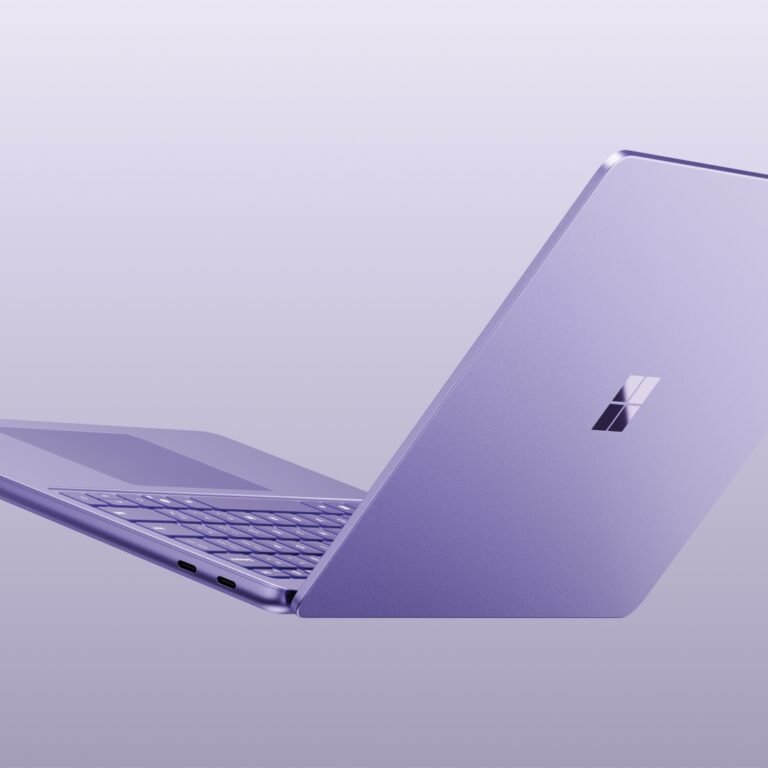 Tech NewsMicrosoft Unveils Surface Pro 12-inch and Surface Laptop 13-inch with Snapdragon X2 Plus: Price, Specs and Release DateSep 24, 2026
 GamingXbox Layoffs Update: Halo Moves to Activision, Obsidian Joins Bethesda and Ninja Theory Faces ClosureSep 23, 2026
One Response